quarta-feira, 13 de janeiro de 2016

Linux - basic commands

Working with files and directories


echo - display a line of text


hostname - show or set the system's host name


whoami - print effective userid


pwd - print name of current/working directory


mkdir - make directories

cd - Enter to the folder


rmdir - remove empty directories


head - output the first part of files


PS1 (Prompt String 1) - PS1 prompt which is a inbuilt shell variable


Bash History Commands


How to shows your default shell


od - dump files in octal and other formats


tac - concatenate and print files in reverse


tail - output the last part of files


wc - print newline, word, and byte counts for each file


mv - move (rename) files


segunda-feira, 19 de janeiro de 2015

How to update nvidia`s driver for graphic card on Ubuntu


From terminal tool like root, type the commands below (one at a time):


sudo apt-get update
sudo apt-get install nvidia-current 
 

After this, reboot the machine.

terça-feira, 14 de outubro de 2014

MS Windows Failover Cluster - cluster name cannot be brought online

MS Windows Failover Cluster - cluster name cannot be brought online

Hi guys, today I have a problem on a MS Windows Failover Cluster (2008)- and the cluster name cannot be brought online.

The message error is below:


Then, I would like to share how to I solved it:

- Check if the A records for account computers that belong to the cluster are on DNS;
- Check if the cluster account computer from DNS had full permission at secutity tab;
- Enable the cluster account computer from Active directory.

After do it, you are able to bring the cluster online.


quinta-feira, 12 de junho de 2014

How to install xendesktop 7.5

How to install XenDesktop 7.5

I'm beginner and my goal is share it just for gain Citrix skills.

This post has like goal show how to install XenDesktop 7.5.

First you need to insert the DVD media file on the server or mount a image .iso on virtual drive. If you haven't the media, you may download a trial version on Citrix website

For this lab, we will install the XenDesktop 7.5 under Windows Server 2012 R2 STD x64

Click on XenDesktop Start button


Click on Get started


Read the CITRIX LICENSE AGREEMENT and select the fisrt option


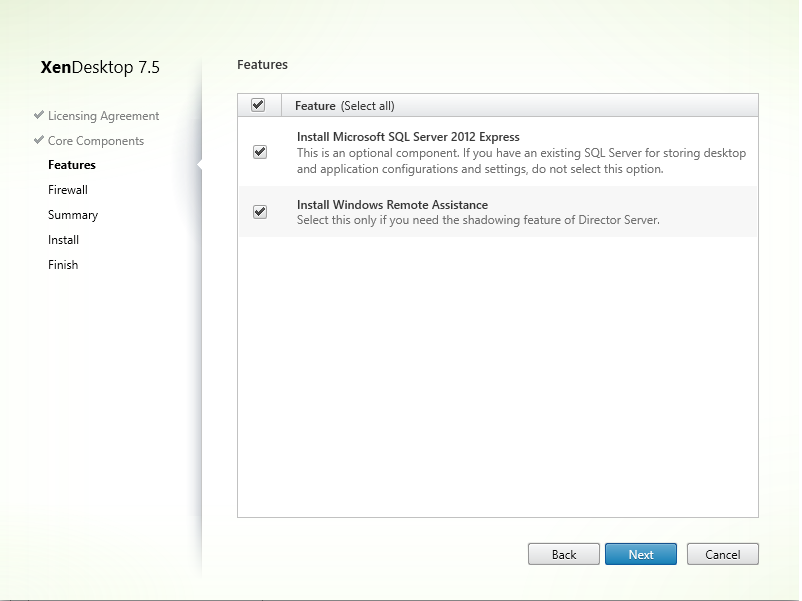
For this lab, we will select all options and click on Next button


We have not any database for this lab than, we will install an Microsoft SQL Server 2012 Express


Select automatically option for Firewall and click on Next button


Review the prerequisites and click on Install button


Finish installation


For XenApp 7.5 basically is the same process.

On the next post, we will try to configure a Desktop to delivery to the user's/device.


sexta-feira, 14 de março de 2014

quinta-feira, 6 de março de 2014

How to create Hyper-V Failover Cluster with SCVMM 2012

After the Hyper-V hosts be configured on your enviroment, it`s time to configure the highly available environment that everyone is demanding in today’s businesses. It`s time for Failover Clustering feature.

The pre-requisites for a HA VMM server installation are:

1. Failover clustering feature added, cluster created and configured (Windows Server 2008 R2 is the minimum OS version supported as node servers)

2. Windows Automated Installation Kit (AIK) for Windows 7 installed on all nodes that will be used as VMM servers: Windows Automated Installation Kit for Windows 7

3. Server and instance name of a SQL Server 2008 or SQL Server 2008 R2 cluster or remote SQL server (best practice to use clustered SQL Server with HA VMM servers)

4. For our DKM (Distributed Key Management) requirement, either logged on, installing VMM with an account that has “edit” permission on the Active Directory container (can be a lower level container doesn’t have to be the root) or DKM group pre-created on Active Directory and its name available to provide at setup (more on DKM requirement later)

Here are the steps to configure the Hyper-V Failover Cluster with SCVMM 2012:

1 - From SCVMM 2012, select Create>Hyper-V Cluster:


2 - Type the Cluster name and select a domain account with privilege to create cluster:


3 - Select a minimum 2 Hyper-V hosts under Available hosts column and move to the Hosts to cluster column:


4 - Enter a static IP address to be used on to the cluster:


5 - Select the disks you want to cluster:


6 - Select the logical networks for creating external virtual switches:


7 - Confirm the settings and click Finish:


After that, that Hyper-V Failover Cluster is configured on SCVMM 2012. You can see the Cluster on SCVMM under servers. See you later to the next post !

domingo, 2 de março de 2014

How to access a shared folder on Ubuntu from your Android

Hello Guys,

There is a way to access a shared folder on Ubuntu computer from your Android on your local area network (LAN). I would link to share it with everyone.

First - Install and configuring the "Samba Server Configuration" GUI


1 - From terminal on Ubuntu computer, type the command below to install the Samba:
sudo apt-get install system-config-samba


2 - From Ubuntu computer, open the Samba:


3 - Once samba application is opened, click on "+" to add the shared folder:


4 - After the folder be shared, from terminal type gksu gedit /etc/samba/smb.conf command to see if the informations about the shared folder are on the end of the file:


Case necessary, from terminal try to restart the samba services, like below and try again:
sudo restart smbd
sudo restart nmbd


Second - Install and configuring ES File Explorer File Manager application on Android device


The ES File Explorer File Manager is a manager file free application and can be downloaded from Google Play

Once ES File Explorer File Manager installed on your Android device, we need to configure it. See steps below:

1 - From the ES File Explorer File Manager application, select LAN under network on the left top menu:


2  - Type the Server, Username and Password


3 - Now, if everything correct, you are able to see your shared folder:


Also, you can map a drive by using a cloud service like, Box, DropBox, Skydrive, Gdrive etc. Just select Cloud instead LAN.

It's all Guys, Did you like this post ? Please leave your feedback. See you later on the next post !